
Work Orders
Work Orders are the core of the system - they represent fault reports, maintenance tasks, inspections and quote requests on your assets.
Work Order List
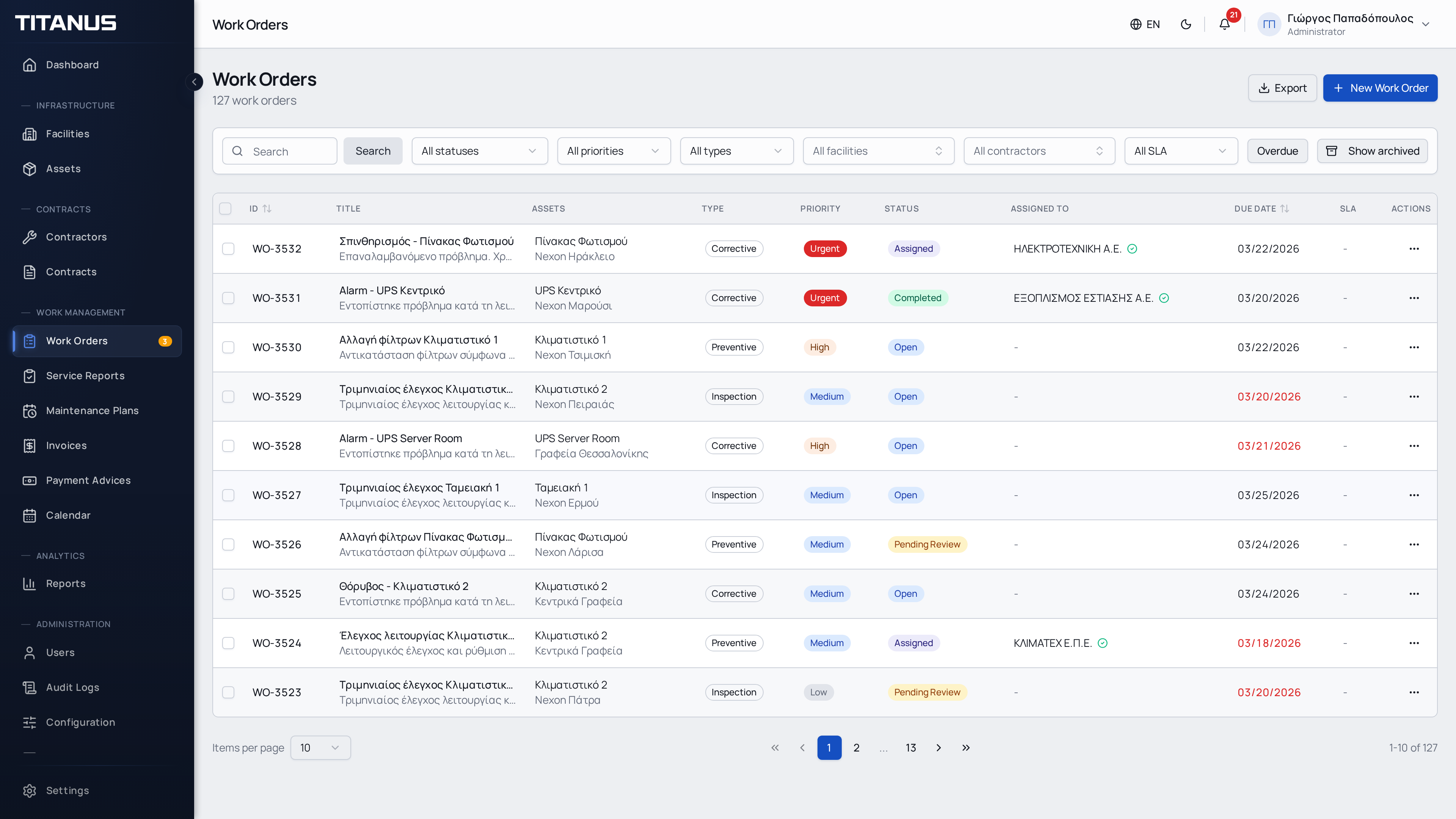
The list shows:
- Order number
- Title
- Asset
- Facility
- Status (color-coded)
- Priority
- Work type
- Assigned contractor
- Due date
- Created date
Filters
You can filter by:
- Status
- Priority
- Work type
- Contractor
- Facility
Bulk Actions
Select multiple orders with the checkboxes and:
- Change status in bulk
- Delete multiple at once
Creating a Work Order
- Click Create Work Order
- Fill in the details:
Basic Information
| Field | Description |
|---|---|
| Title | Brief description (e.g. "Air conditioner malfunction") |
| Description | Detailed description of the issue |
| Asset | Select asset (or scan QR code) |
| Problem Type | Standardized issue from a dropdown based on the asset type (e.g. "Not cooling", "Leaking"). If the problem type is marked as "manual entry", a free-text field appears for additional detail. |
| Work Type | Corrective, Preventive, Inspection or Quote |
| Priority | Low, Medium, High or Urgent |
| Due Date | Expected completion date (auto-set to 24h for direct dispatch if left empty) |
When you select or scan an asset, the facility, space, and asset type filters are filled from that asset so the rest of the form stays aligned.
Use Scan QR to open the device camera and point it at the asset label. Camera permission is required. The scanner runtime is packaged with Titanus, so scanning does not depend on a third-party download.
Workflow
| Option | Description |
|---|---|
| Direct dispatch | The order goes straight to the contractor |
| Send for review | The order goes to the Facility Manager for approval first |
Contractor Assignment
The system automatically suggests the appropriate contractor based on active contracts. You can accept the suggestion or manually select a different contractor.
Photos
You can attach photos of the issue with captions - both during creation (on the success screen) and when editing an existing work order.
- Click Save
Work Order Statuses
| Status | Description |
|---|---|
| Open | New order, not yet assigned |
| Pending Review | Awaiting Facility Manager approval |
| Assigned | Assigned to contractor, not yet started |
| In Progress | Contractor is working |
| Completed | Work is finished. After completion, the contractor can submit a Service Report documenting the work performed. |
| Cancelled | Order was cancelled |
Workflow
Direct Dispatch
Open → Assigned → In Progress → CompletedThe order is sent directly to the contractor. Suitable for recurring or low-cost issues.
Send for Review
Open → Pending Review → Assigned → In Progress → CompletedThe order goes through the Facility Manager first, who can:
- Change the priority
- Modify the due date
- Change the contractor
- Add comments or photos
- Approve - dispatches the order to the contractor and sends an email notification
- Reject - returns the order to Open or Cancelled status
Suitable for issues with higher complexity or cost.
Sending to Contractor
When a work order is assigned to a contractor, a Send to Contractor button (mail icon) appears in the actions column. Clicking it sends an email to the contractor with a PDF attachment of the work order.
After the email is sent, a green checkmark appears next to the contractor's name indicating successful delivery, along with the send timestamp on hover.
TIP
For the FM Review workflow, the email is sent automatically when the manager approves the order - no separate action is needed.
Work Types
| Type | Description |
|---|---|
| Corrective | Fault repair - something broke and needs to be fixed |
| Preventive | Scheduled maintenance - regular preventive work |
| Inspection | Condition assessment - evaluation without intervention |
| Quote | Quote request - cost estimate from a contractor |
Notifications
During the work order lifecycle, notifications are sent automatically:
- The contractor receives a professional HTML email (including a PDF assignment document)
- The Facility Manager is notified by email when a work order is submitted for review
- Status changes create in-platform notifications
Reminders
The system supports sending reminders to contractors for overdue or pending work orders. The reminder count and last reminder timestamp are tracked for each work order, helping managers monitor follow-up activity.
Reassign Contractor
If a work order already has an assigned contractor, the actions menu can show Reassign.
Reassign does not simply pick a contractor manually. It re-runs the automatic assignment logic against the work order's current asset and contract context.
- If a matching contract is found, Titanus updates the assignment and confirms the selected contractor.
- If no matching contract is found, Titanus keeps the current assignment unchanged and shows a warning.
This is useful after updating contracts, correcting asset data, or checking whether a better match is now available.
Export and Bulk Actions
When the Import / Export feature is enabled, the page offers an Export button for the filtered work-order list.
Selecting multiple work orders opens a bulk-action bar that can include:
- bulk status change
- bulk copy
- bulk delete
Archiving
Use the Archive action from the actions menu (⋯) to archive a work order. Archived work orders are hidden from the main list but remain in the system for historical reference.
- Archived work orders appear when you select the Archived filter
- Click Unarchive to restore a work order