
Users & Permissions
The Users section allows you to manage users and permission groups for your organization.
Users
User List
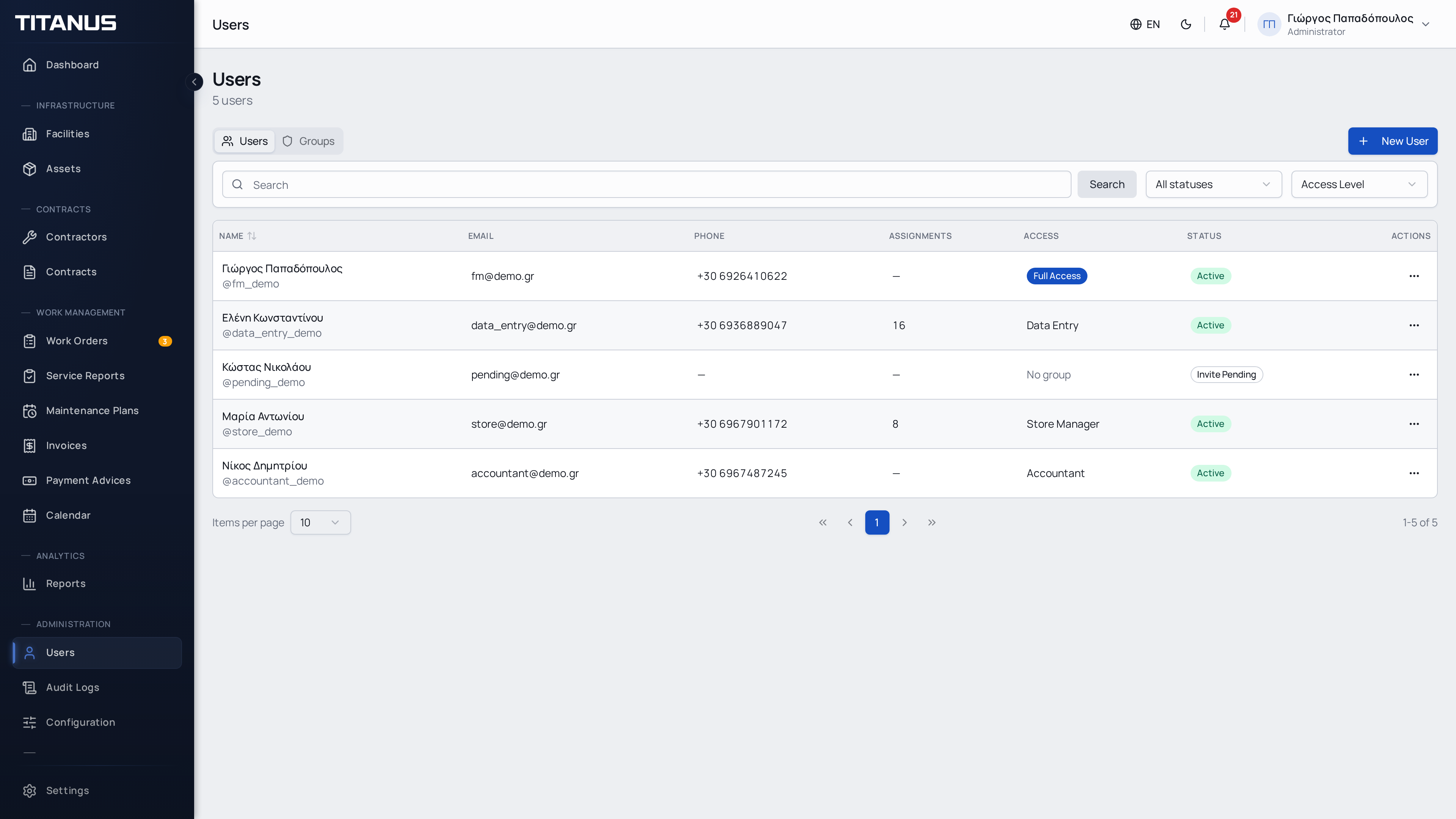
The list shows:
- Profile avatar
- First and last name
- Phone
- Permission groups
- Status (active/inactive)
- Full access (yes/no)
Inviting a New User
- Click Invite User
- Fill in:
| Field | Description |
|---|---|
| First Name | User's first name |
| Last Name | User's last name |
| Invitation will be sent to this email | |
| Phone | Contact phone number |
| Groups | Assign to one or more groups |
| Full Access | When enabled, user sees everything |
- The user receives an invitation email with an acceptance link
User Actions
- Edit - Change details, groups or access level
- Deactivate - User can no longer sign in
- Activate - Restore access
- Regenerate Invite - Resend invitation email if the original expired
- Delete - Remove user
Permission Groups
Groups define what each user can do on the platform.
Creating a Group
- Go to the Groups tab
- Click Create Group
- Define:
- Group name (e.g. "Store Manager", "Technician", "Administrator")
- Permissions - Select permissions from the list
Permission Categories
| Category | Permissions |
|---|---|
| Facilities | View, Create, Edit, Delete, Archive |
| Assets | View, Create, Edit, Delete, Archive |
| Contractors | View, Create, Edit, Delete, Archive |
| Contracts | View, Create, Edit, Delete, Archive |
| Work Orders | View, Create, Edit, Delete, Archive, Send, View Own |
| Service Reports | View, Create, Edit, Delete, Archive, Send, View Own |
| Users | View, Create, Edit, Delete |
| Reports | View Reports |
| Audit Logs | View Audit Logs |
TIP
See the Permissions Reference for a complete list of all permission codenames.
Access Levels
Full Access
Users with full access see all organization data, regardless of facility assignments. This flag bypasses all permission checks.
Limited Access
Users without full access see only:
- Facilities assigned to them (via Facility Assignments)
- Assets and work orders within those facilities
Assignments are managed from the user edit form, where you can assign specific facilities to each user.
Example
A "Store Manager" can have permission to create work orders, but only for facilities assigned to them.
Email Verification
New users invited via the platform receive an invitation email. After accepting and setting their password, they may also need to verify their email address. The verification status is tracked in the system.