
Contracts
Contracts define which contractor covers which assets, at which facilities, for what time period. They are the central link between contractors and assets.
Why They Matter
Contracts are used by the automatic assignment system. When a work order is created, the system looks for an active contract that covers the asset and automatically assigns the work to the correct contractor.
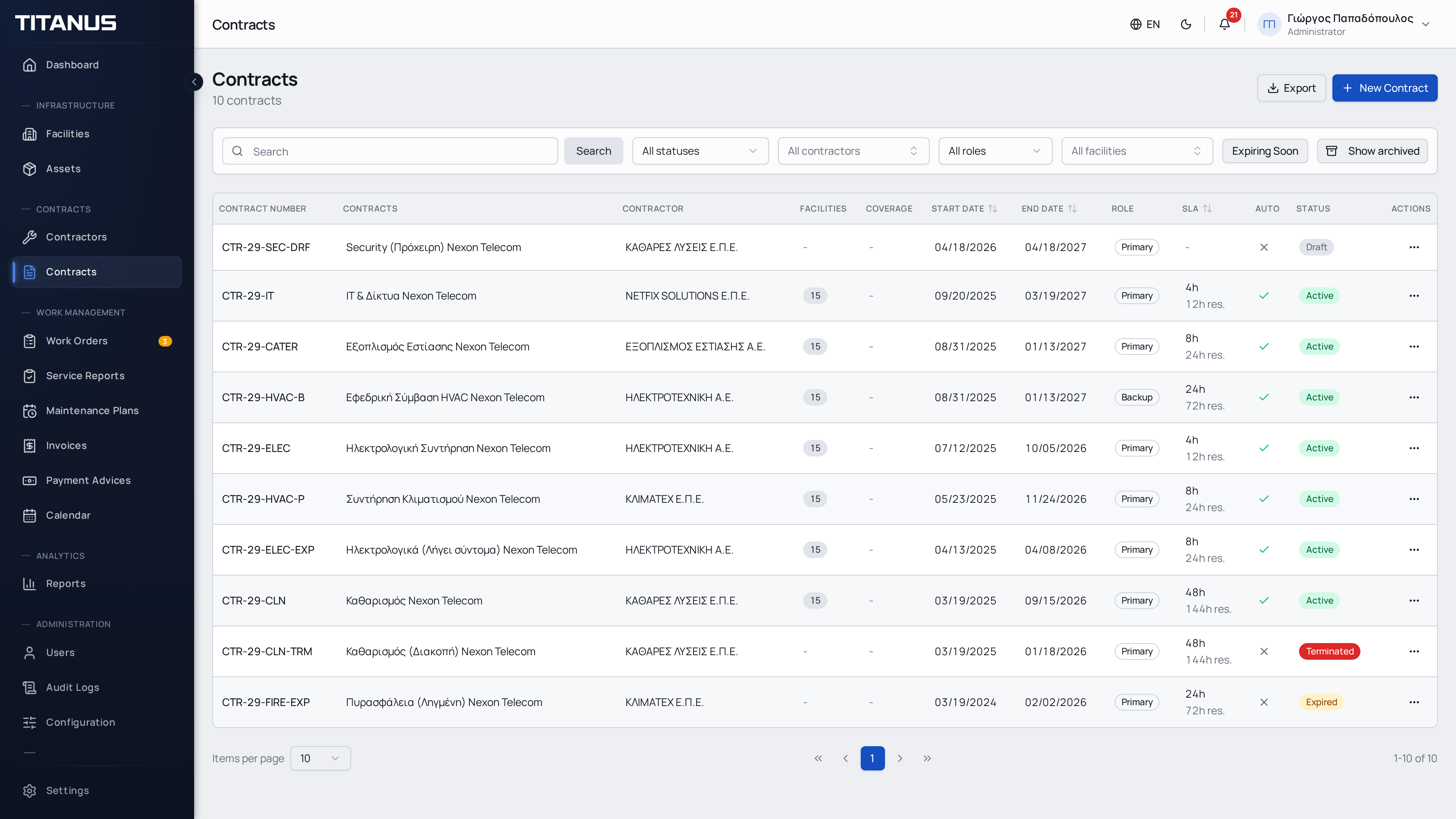
Contract List
The list shows:
- Contract number
- Title
- Contractor
- Status
- Start/end dates
- SLA
Creating a Contract
- Click Add Contract
- Fill in the details:
Contract Identity
| Field | Description |
|---|---|
| Contract Number | Unique reference number |
| Title | Descriptive title |
| Contractor | Select contractor |
| Status | Draft, Active, Expired, Terminated |
Validity Period
| Field | Description |
|---|---|
| Start Date | When the contract takes effect |
| End Date | When the contract expires |
Coverage Scope
Contracts support two types of coverage that can be used independently or together:
| Field | Description |
|---|---|
| Facilities | One or more covered facilities |
| Asset Types | Cover all assets of selected types (e.g. all HVAC units). Dynamic: new assets of that type are automatically covered. |
| Assets | Cover specific individual assets for precise control |
Two Coverage Strategies
- Asset Type Coverage is ideal for broad contracts (e.g. "CoolTech maintains all HVAC equipment"). When new assets of that type are added, they are automatically covered.
- Specific Asset Coverage is ideal for targeted contracts (e.g. "Cover only the rooftop chiller unit").
- You can combine both on the same contract for maximum flexibility.
Selecting Assets (Chained Filters)
When adding specific assets, the form uses chained selectors for convenience: first select one or more Facilities, then optionally pick an Asset Category to narrow the list, and finally select the specific Assets covered. The category filter is purely a UI convenience.
Assignment Rules
| Field | Description |
|---|---|
| Auto-assign | When enabled, work orders are assigned automatically |
| Role | Primary or Backup - primary contracts are preferred |
| Response Time (SLA) | In hours - used to select the best contractor |
Documentation
- Contract file - Upload the contract PDF
- Click Save
Contract Statuses
| Status | Description |
|---|---|
| Draft | Created but not yet active |
| Active | In effect - used for automatic assignment |
| Expired | Past the end date |
| Terminated | Manually terminated early |
Important
Only active contracts are used for automatic work order assignment. Make sure your contracts are active and cover the correct facilities and assets.
Primary vs Backup Contracts
- Primary - Preferred by the automatic assignment system
- Backup - Used only if no primary contract is found
If there are multiple primary contracts, the one with the best SLA (lowest response time) is selected.
Coverage Priority
When multiple contracts match, the system prefers contracts that cover the specific asset over contracts that cover the asset's type. See Auto-Assignment for details.
Important
Automatic assignment only works if appropriate contracts exist. Without contracts, the user must select the contractor manually for each work order.
Archiving
Use the Archive action from the actions menu (⋯) to archive a contract. Archived contracts are hidden from the main list but remain in the system.
- Archived contracts appear when you select the Archived filter
- Click Unarchive to restore a contract
- Archived contracts are not considered by the automatic assignment engine
Export
When the Import / Export feature is enabled, the contracts page shows an Export button for downloading the filtered contract list. Titanus does not provide a contract bulk-import action from this page.