
Maintenance Plans
Maintenance Plans allow you to define annual preventive maintenance schedules for each facility. They organize recurring tasks, assign contractors, track budgets, and automatically generate work orders each month.
Why They Matter
Without maintenance plans, preventive work must be created manually. With a plan, you define tasks once per year and the system automatically creates work orders for the current month, ensuring nothing is missed.
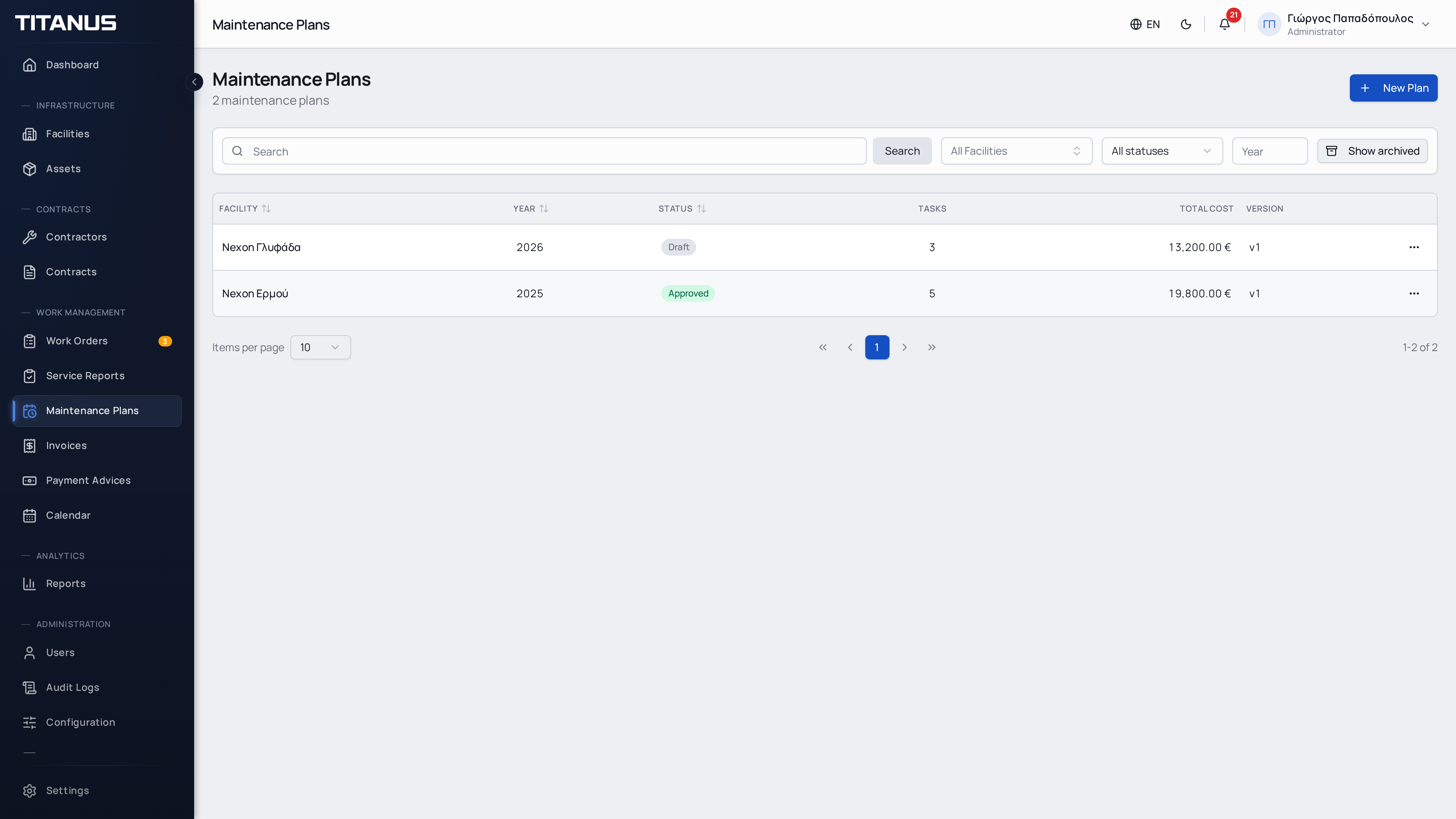
Plan List
Navigate to Maintenance Plans from the sidebar. The list shows:
- Facility name
- Year
- Status (Draft, Approved, Archived)
- Number of tasks
- Total annual cost
- Plan version
Filters
Use the filter bar to narrow results:
- Search by facility or plan details
- Facility dropdown to filter by specific facility
- Status to show only Draft, Approved, or Archived plans
- Year to filter by plan year
Click a row to open the plan detail page.
Creating a Plan
- Click Create Plan
- Fill in the details:
| Field | Description |
|---|---|
| Facility | The facility this plan covers (required) |
| Year | The calendar year for the plan (required, 2000-2100) |
| Notes | Optional notes or comments |
- Click Save
Important
Only one plan can exist per facility per year. If you need to modify a plan, edit the existing one rather than creating a duplicate.
Plan Statuses
| Status | Description |
|---|---|
| Draft | Being prepared. Tasks can be added, edited, or removed. |
| Approved | Finalized. Calendar and budget tabs become visible. Work orders are generated monthly. |
| Archived | No longer active. Preserved for historical reference. |
Status Transitions
- Draft can be Approved (requires at least one task)
- Approved can be Reverted to Draft or Archived
- Reverted to Draft allows editing tasks and re-approving
Tasks
Tasks define the recurring maintenance activities within a plan.
Creating a Task
- Open a plan in Draft status
- Click Create Task
- Fill in the task details:
| Field | Description |
|---|---|
| Task Name | Descriptive name (e.g., "AC Unit Service") |
| Description | Optional additional details |
| Contractor | The contractor responsible for this task |
| Contract | The contract covering this task (required) |
When you select a contract, the coverage fields (asset types and specific assets) are automatically populated from the contract. You can remove items that are not relevant to this task, but you cannot add items outside the contract's coverage.
Coverage
Each task must specify which assets it covers, within the selected contract's coverage scope. There are two coverage modes:
- Asset Type Coverage: Select one or more asset types (e.g., "Air Conditioners"). All current and future assets of those types in the facility are automatically covered.
- Specific Assets: Select individual assets for targeted coverage.
You can use both modes together. At least one asset type or one specific asset is required. The available coverage is limited to what the selected contract defines.
Dynamic Coverage
When you select an asset type, any new asset of that type added to the facility later is automatically included in the plan. No manual updates needed.
Frequency & Cost
| Field | Description |
|---|---|
| Frequency | How often the task occurs (e.g., every 3 months, every 30 days) |
| Start Date | When occurrences begin within the plan year |
| Annual Cost | Total budgeted cost for this task per year |
Approval
When a plan is ready, click Approve. This action:
- Generates all scheduled occurrences for the year based on each task's frequency and start date
- Splits each task's annual cost evenly across its occurrences
- Makes the Calendar and Budget tabs visible
- Increments the plan version number
Re-approval
If you revert an approved plan to draft, edit tasks, and approve again:
- Pending occurrences (no work orders created yet) are regenerated
- Occurrences that already have work orders are preserved
- The plan version is incremented
Calendar Matrix
The calendar tab shows a 12-month grid overview of all scheduled maintenance:
- Rows: One per task (showing task name and contractor)
- Columns: One per month (January through December)
- Cells: Color-coded indicators showing occurrence status
Status Colors
| Color | Status | Meaning |
|---|---|---|
| Amber | Pending | Scheduled but work order not yet created |
| Blue | WO Created | Work order has been generated |
| Green | Completed | All related work orders are completed |
| Gray | Skipped | Occurrence was skipped |
Hover over any cell to see the exact date, status, and cost.
The Annual Cost column on the right shows each task's total yearly cost.
Budget
The budget tab provides financial overview of the plan:
Summary Cards
- Total Annual Budget: Sum of all task costs
- Average Monthly Cost: Annual budget divided by 12
- Peak Month: The month with the highest cost
- Total Tasks: Number of tasks in the plan
Monthly Breakdown
A bar chart showing cost distribution across all 12 months, helping identify peak maintenance periods.
Cost Breakdown Table
A detailed table showing per-task costs:
- Task name
- Contractor
- Number of occurrences
- Cost per occurrence
- Annual cost
- Total row at the bottom
PDF Export
For approved plans, click Export PDF to download a landscape PDF report containing:
- Plan header with facility name, year, and version
- Calendar matrix table
- Budget summary
- Signature area
Automatic Work Order Creation
On the 1st of each month, the system automatically:
- Finds all approved plans for the current year
- Identifies pending occurrences scheduled for the current month
- Creates a preventive work order for each occurrence and covered asset
- Notifies the assigned contractor by email
INFO
Work orders are created as Preventive type. They appear in the regular work order list and follow the standard work order workflow. When all work orders linked to an occurrence are completed, the occurrence is automatically marked as completed.