
Getting Started
Welcome to Titanus. Use this guide to move from invitation email to day-to-day work, including first login, onboarding, language preferences, and app installation.
Accessing the Platform
Most users join Titanus through an invitation from their organization.
Accept an Invitation
- Open the invitation email.
- Click the acceptance link.
- Set your password.
- Complete email verification if your organization requires it.
- Sign in with your email and password.
First login
If the invitation link has expired, ask an administrator to regenerate the invite from the Users page.
Forgot Password
If you cannot sign in:
- Click Forgot Password on the login page.
- Enter your email address.
- Open the reset email.
- Set a new password and return to the login page.
First-Login Setup
On the first login, Titanus may guide you through one or both of these flows:
- Onboarding wizard: shown to users with full access when the organization setup is still incomplete
- Welcome tour: shown to new users after onboarding is complete
Onboarding Wizard
The onboarding wizard helps an administrator finish the minimum setup quickly:
- Review the organization welcome step.
- Create the first facility.
- Invite teammates by email.
- Finish setup and open the main app.
You can skip the optional facility and invitation details, but the wizard still records onboarding as complete.
Welcome Tour
The welcome tour is a short in-app guide for new users. It highlights the most important interface areas, such as:
- Sidebar navigation
- Notification bell
- User menu
On smaller screens, the tour only shows the steps that exist on mobile.
Navigation
The left sidebar contains the main work areas. The sections you see depend on your permissions and, in some cases, your subscription features.
| Section | Description |
|---|---|
| Dashboard | Overview with statistics, map, and recent work |
| Facilities | Buildings, stores, and location records |
| Assets | Equipment, documents, QR labels, and maintenance history |
| Contractors | Service providers and company records |
| Contracts | Coverage rules, SLAs, and assignment settings |
| Work Orders | Fault reports, dispatching, review, and follow-up |
| Service Reports | Work execution reports from contractor visits |
| Calendar | Date-based view of work activity |
| Reports | KPIs and operational analytics |
| Users | User accounts, groups, and facility assignments |
| Configuration | Lookup tables and invoicing reference data |
| Audit Logs | Change history across the organization |
| Subscription & Plans | Plan details, usage, add-ons, and feature availability |
| Profile & Sessions | Personal details, password, push notifications, and active sessions |
Permissions and feature locks
If a page is missing, it usually means one of two things: your account does not have the required permission, or the feature is not included in your organization's current plan.
Dashboard
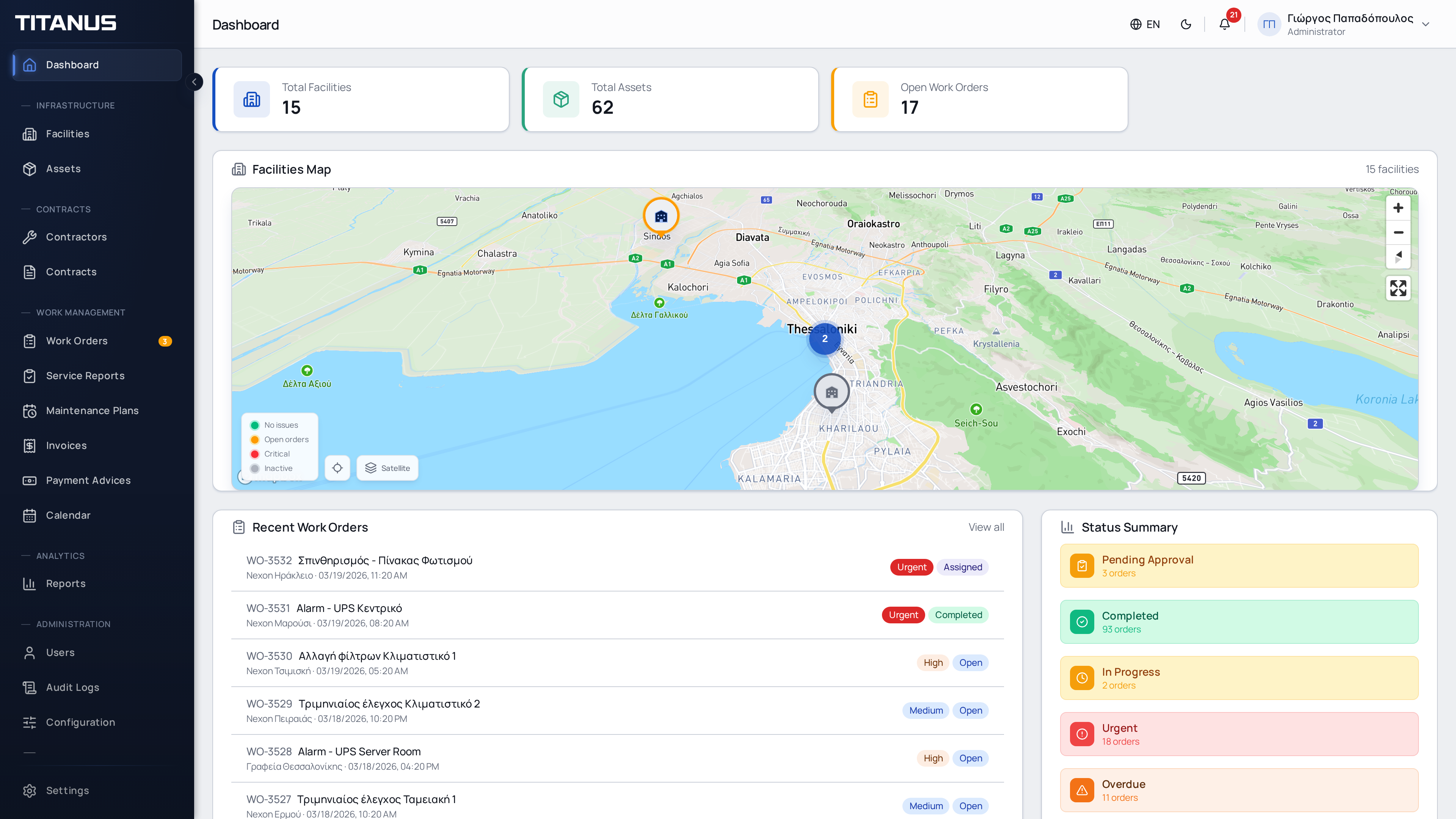
The dashboard is the default landing page after sign-in. It includes:
- Statistics cards for facilities, assets, and open work orders
- An interactive facilities map
- Recent work orders
- Status summary cards for key states such as Pending Approval, In Progress, Completed, Urgent, and Overdue
Each status card opens the work-order list with the related filter already applied.
Language and Appearance
Titanus supports Greek, English, and German.
- On desktop, use the language switcher in the top bar.
- On mobile, language switching is available from the user menu.
- The same user menu also includes the dark/light mode toggle on mobile.
- On desktop, the theme toggle is visible directly in the top bar.
Install, Update, and Offline Use
Titanus can be installed as a progressive web app on supported browsers and devices.
Install Banner
When your browser allows installation, Titanus shows an Install Titanus banner near the bottom of the screen. You can:
- Click Install to add the app to your device
- Dismiss the banner if you want to install later
Update Prompt
When a newer app version is available, Titanus shows an update prompt. Click Update now to refresh to the latest version.
Offline Indicator
If your connection drops, Titanus shows an offline banner at the top of the page and continues showing any data already cached in the browser.
If a Page Does Not Load
Titanus may refresh automatically when a page cannot load. If the problem continues, a recovery screen appears. Check your connection and click Reload page to try again. This also applies to registration and password-reset pages.
Next Steps
- Go to Profile & Sessions to update your account and push-notification settings.
- Go to Organization if you are an administrator handling branding and defaults.
- Go to Work Orders for the core daily workflow.