
Assets
Assets represent the technical equipment and devices in your facilities - generators, air conditioners, lighting, electrical panels, etc.
Asset List
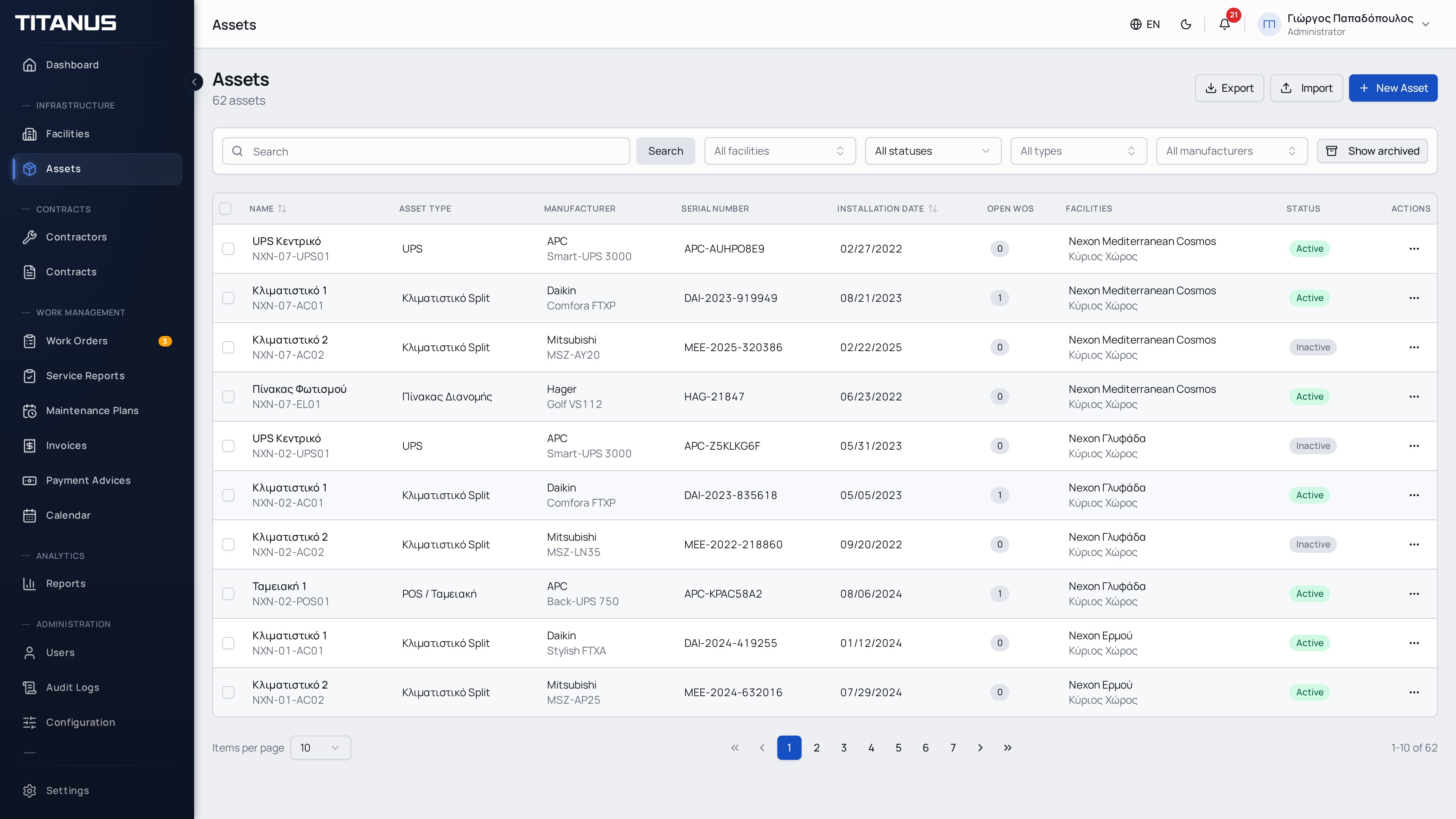
The list shows:
- Asset name
- Asset code
- Type and category
- Status (active/out of service)
- Manufacturer and model
- Facility and space
Creating an Asset
You can create assets in two ways:
- From the Assets page - click New Asset and select a facility (and space if required)
- From a facility's Spaces page - the facility and space are pre-selected automatically
- Click New Asset
- Fill in the details:
Identification
| Field | Description |
|---|---|
| Name | Asset name (e.g. "Generator") |
| Asset Code | Internal reference code |
| Asset Type | E.g. Generator, Air Conditioner, Light Fixture |
| Category | E.g. Electrical, HVAC, Plumbing |
| Status | Active or Out of Service |
Manufacturer & Identification
| Field | Description |
|---|---|
| Manufacturer | Manufacturing company |
| Model | Device model/type |
| Serial Number | Serial number (optional) |
| Barcode / QR | Barcode or QR code value for scanning (optional) |
| Installation Date | When it was installed (optional) |
| Purchase Date | When it was purchased (optional) |
| Year Manufactured | Year of manufacture (optional) |
Financial
| Field | Description |
|---|---|
| Acquisition Cost | Purchase or acquisition cost of the asset (optional). Useful for tracking asset value and calculating depreciation. |
Location
| Field | Description |
|---|---|
| Facility | Which facility it is in (required) |
| Floor | Optional filter that narrows the space list for the selected facility |
| Space | Which space it is in (required or optional depending on "Spaces Required" setting) |
Spaces Required
If the Spaces Required setting is enabled for the organization or for the specific facility, the space field is mandatory. Otherwise, you can assign assets directly to a facility without a space.
When a facility has many spaces, select a floor first to show only spaces on that floor. If a space is already selected, the floor field is filled automatically.
- Click Save
Changing an Asset's Location
Use Edit on an asset to change its facility or space. If you move the asset to another facility, select a space from that same facility, or leave the space empty only when spaces are optional for the target facility.
Asset Category & Type
The Asset Category and Asset Type fields organize your equipment into a hierarchy (e.g. Category "HVAC" → Type "Split AC Unit"). Contracts link directly to specific assets, so the automatic assignment system matches work orders to the correct contractor based on which assets are covered by each contract.
Organization
Properly categorize your assets by Category and Type to keep your equipment inventory well organized and easy to filter.
Documents
Each asset can have multiple document attachments for storing important files.
Document Types
| Type | Description |
|---|---|
| Manual | Operating manual or user guide |
| Warranty | Warranty certificate or card |
| Technical Sheet | Technical specifications or data sheet |
| Other | Any other relevant document |
Uploading a Document
- Open the asset detail or edit form
- Click Add Document
- Provide a title, select the document type, and upload the file
Asset PDF Preview
Use PDF Preview from an asset row or from the asset detail actions menu to open a printable asset record inside Titanus.
The PDF includes the organization logo, QR reference, asset image when available, identity fields, location, manufacturer details, dates, and acquisition cost. It reflects the current technical asset data only and does not include attached documents, notes, or maintenance history.
QR Code Labels
You can generate printable QR code labels for your assets. Each label contains the asset's QR code, name, code, and location information.
- Single label: Click the QR icon on an asset row to download a label PDF for that asset
- Bulk labels: Select multiple assets and use the bulk action to generate an A4 sheet with all labels
The QR code encodes the asset code, allowing field technicians to scan and quickly identify equipment.
TIP
Print labels on adhesive paper and attach them to equipment for fast identification during inspections and fault reporting.
Maintenance History
Click the history icon (clock) on an asset row to open a dialog with the full work order history for that asset. It shows:
- Work order title and creation date
- Status (open, in progress, completed, etc.)
- Priority
- Work type (corrective, preventive, inspection, quote)
- Assigned contractor
- Due date
TIP
Use the maintenance history to track how often an asset needs repairs and identify equipment that may need replacement.
Archiving
Use the Archive action from the actions menu (⋯) to archive an asset. Archived assets are hidden from the main list but remain in the system.
- Archived assets appear when you select the Archived filter
- Click Unarchive to restore an asset
Filters & Search
You can filter by:
- Facility
- Asset category
- Asset type
- Status
- Archive status (Active / Archived / All)
And search by name, code, manufacturer or model.
Bulk Actions, Import, and Export
When the Import / Export feature is enabled, the assets page supports:
- Export of the current asset dataset
- Import of assets from a spreadsheet for users with create permission
When you select multiple assets, Titanus opens a bulk-action bar that can include:
- status changes
- bulk delete
- bulk QR-label download
QR labels are feature-gated
Single and bulk QR-label actions require the QR Labels feature. If your plan does not include it, the label actions stay visible but locked.