
Calendar
The calendar gives you a visual overview of upcoming and overdue maintenance work, helping with scheduling, workload planning, and identifying busy periods at a glance.
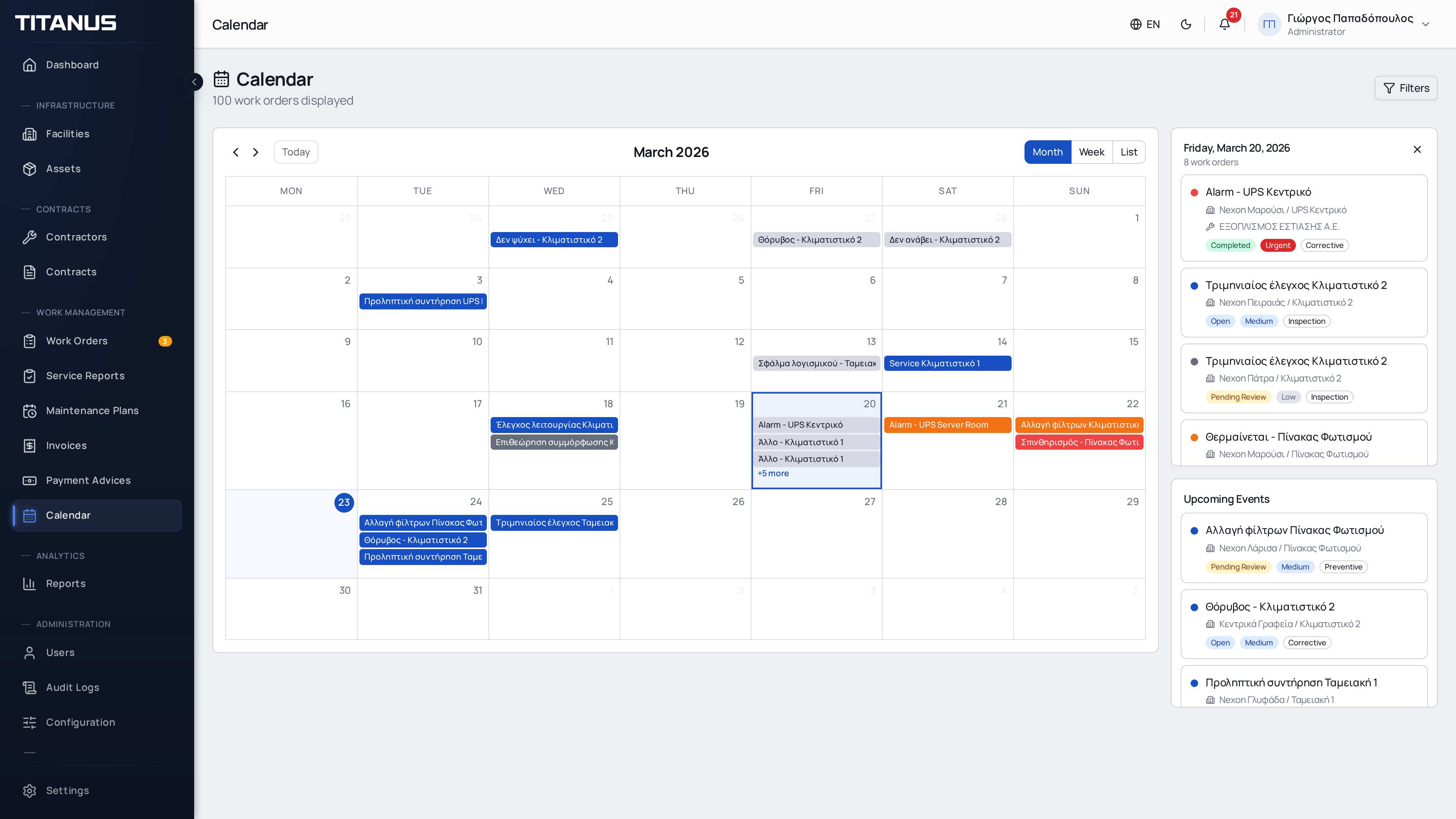
The Calendar page provides a visual timeline of all work orders based on their due dates, with an interactive day panel for detailed daily views.
Layout
The calendar uses a two-panel layout:
- Calendar grid (left) - Monthly or weekly view showing work orders on their due dates
- Day side panel (right) - Shows work orders for the selected day and upcoming events
Click any day on the calendar grid to see its work orders in the side panel. The panel also displays upcoming work orders below the selected day's events.
TIP
The day side panel is visible on desktop screens. On mobile devices, click directly on events in the calendar grid to view details.
Views
The calendar supports three viewing modes (toggle from the top-right):
| View | Description |
|---|---|
| Month | Monthly grid showing all work orders on their due dates |
| Week | Weekly grid with detailed daily breakdown |
| List | Chronological list of upcoming work orders |
Color Coding
Work orders are color-coded by priority for instant visual identification:
| Color | Priority |
|---|---|
| Red | Urgent |
| Orange | High |
| Blue | Medium |
| Gray | Low |
Completed and cancelled work orders appear in a muted tone to distinguish them from active orders.
Filters
Click the Filters button to show the filter bar. You can filter by:
- Status - Active only (default), All, or a specific status (Open, Assigned, In Progress, etc.)
- Work Type - All, Corrective, Preventive, Inspection, or Quote
- Facility - Select a specific facility to view only its work orders
Filters are preserved in the URL, so you can bookmark or share filtered views.
Interacting with Events
- Click a day cell to see all work orders for that day in the side panel
- Click an event in the calendar or side panel to open the work order detail dialog
- The side panel shows each event as a card with priority color, title, facility, and contractor
Navigation
- Use the < > arrows to navigate between months or weeks
- Click Today to return to the current date
- The event count is displayed below the page title
TIP
Use the calendar to plan maintenance schedules, identify busy periods, and spot overdue work orders - they remain visible even past their due date.