
Facilities
Facilities are the physical buildings or locations you manage - stores, offices, warehouses, industrial sites, etc. Each facility belongs to your organization.
Facility List
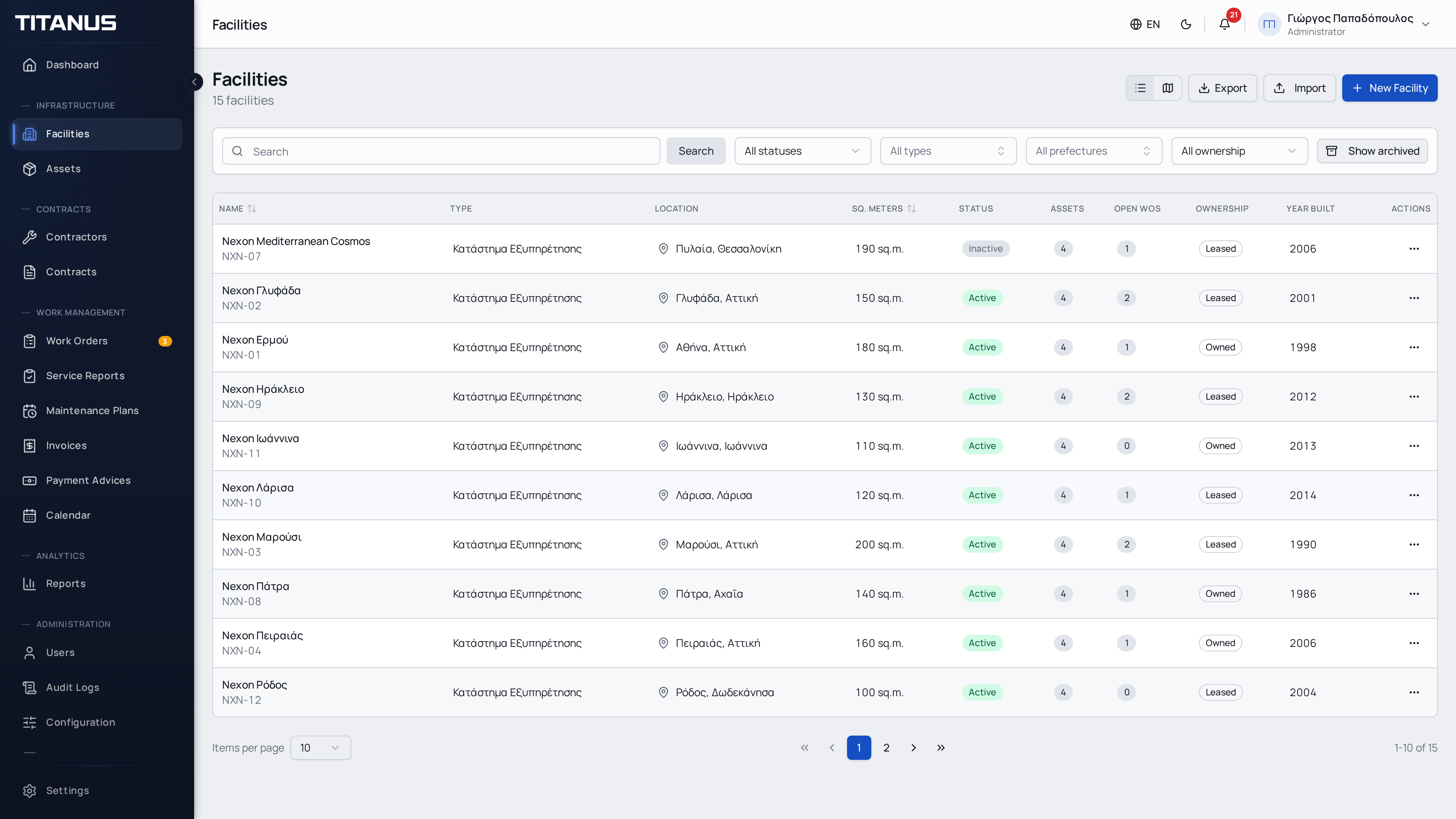
The facilities page offers two views:
- List view - Table with name, type, city, status and address
- Map view - Interactive map with all facility locations
Use the toggle button at the top to switch views.
Creating a Facility
- Click Add Facility
- Fill in the details:
General
| Field | Description |
|---|---|
| Name | Facility name (e.g. "Athens Store") |
| Code | Internal reference code (unique per organization) |
| Type | Store, offices, warehouse, industrial site, etc. |
| Status | Active or Inactive |
Location
The Address field has autocomplete - as you type, address suggestions appear. Selecting a suggestion automatically fills in the city, postal code, prefecture, country and coordinates. You can edit any field after auto-fill.
Once an address is selected, a map preview with a pin appears showing the exact location.
| Field | Description |
|---|---|
| Address | Street and number (with autocomplete) |
| City | Facility city |
| Postal Code | Postal/ZIP code |
| Prefecture / Region | Prefecture or region |
| Country | Country |
Technical Details
| Field | Description |
|---|---|
| Square Meters | Total area |
| Number of Floors | Floor count |
| Year Built | Optional |
| Building Type | Owned or leased |
| Notes | Free text |
Configuration
| Field | Description |
|---|---|
| Spaces Required | Override the organization-level setting for this specific facility. When set to Yes, assets in this facility must be assigned to a space. When left blank, the organization default is used. |
- Click Save
Facilities Map
In the map view, each facility appears as a marker. Click on a marker to see summary information (name, address) or navigate to the facility page.
Map
When you select an address from the suggestions, coordinates are saved automatically and the facility appears on the map.
Floor Plans
Each facility can have multiple floor plan attachments. Floor plans help technicians navigate the facility during maintenance work.
Uploading a Floor Plan
- Open a facility's detail page
- Go to the Floor Plans section
- Click Upload Floor Plan
- Provide a title and select the file (PDF, PNG or JPG)
Managing Floor Plans
- View or download any uploaded floor plan
- Delete floor plans you no longer need
Archiving
Use the Archive action from the actions menu (⋯) to archive a facility. Archived facilities are hidden from the main list but remain in the system.
- Archived facilities appear when you select the Archived filter
- Click Unarchive to restore a facility
- Archived facilities are still referenced by existing contracts and work orders
Filters
You can filter facilities by:
- Facility type
- Status (active/inactive)
- Archive status (Active / Archived / All)
And search by name, code or address.
Import and Export
When the Import / Export feature is enabled for your organization, the facilities page shows:
- an Export button for downloading the current facilities dataset
- an Import button for uploading facilities from a spreadsheet, available to users who can create facilities
If the feature is not included in the current plan, these actions may be unavailable or shown as locked.
Access Restrictions
Users with limited access see only facilities assigned to them. Users with full access see all organization facilities.