
Invoices
The Invoices page tracks contractor invoices related to completed work orders. Titanus supports an approval workflow, line-item rejection, payment tracking, and a separate Payment Advices page for outbound payment communication.
Invoice List
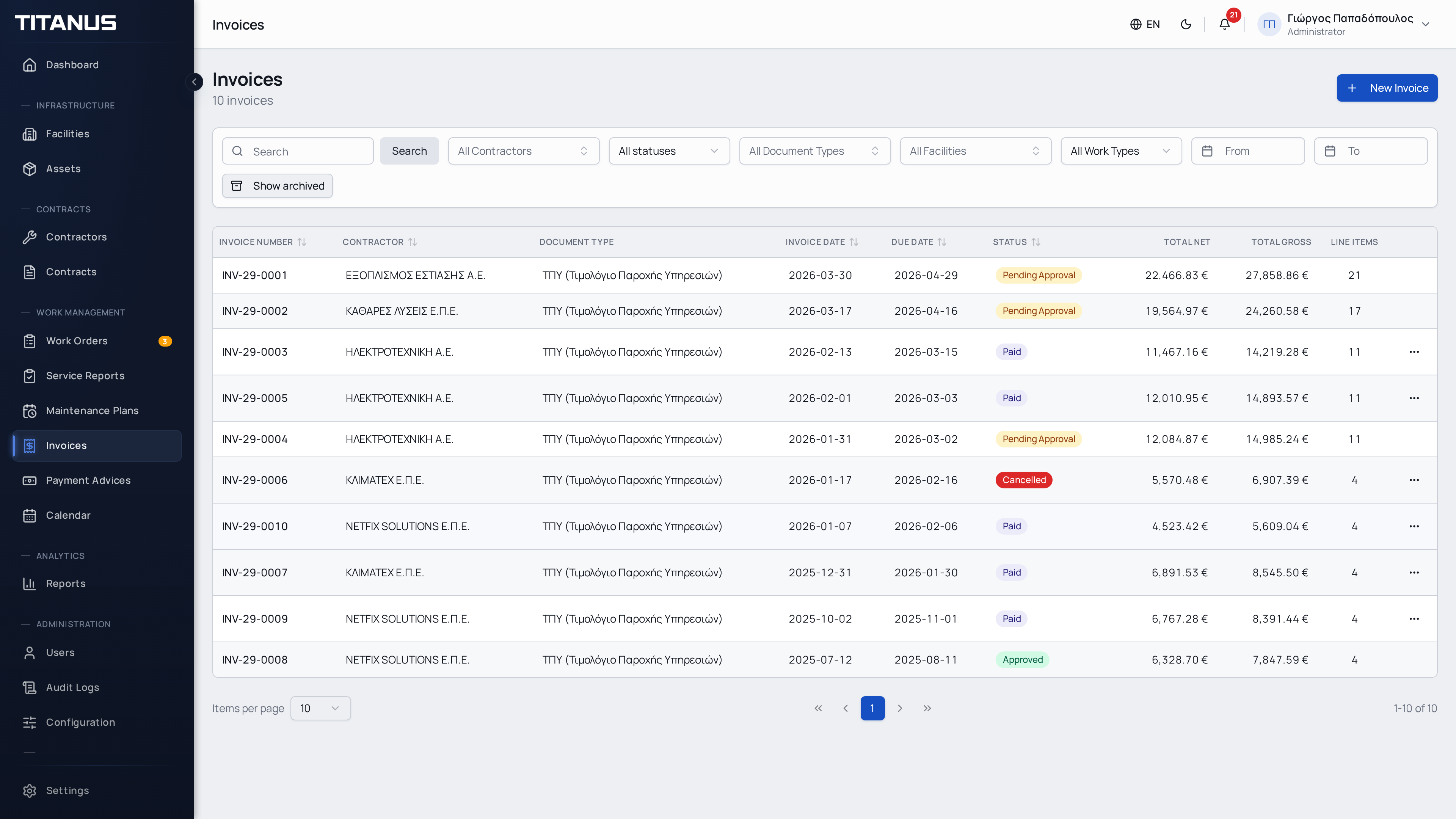
The list shows:
- Invoice number
- Contractor
- Document type
- Invoice date
- Due date
- Status (color-coded)
- Net amount
- Total amount
- Line item count
Filters
You can filter by:
- Contractor
- Status
- Document type
- Facility
- Invoice date range
- Work order type (corrective / preventive)
- Free text search
Creating an Invoice
Invoice creation follows a three-step flow:
Step 1: Invoice Details
- Click Create Invoice
- Fill in the details:
| Field | Description |
|---|---|
| Contractor | Select the contractor submitting the invoice |
| Invoice number | The contractor's document number |
| Document type | E.g. Service Invoice, Invoice, Credit Note |
| Invoice date | The issue date |
| Notes | Optional notes |
| Attachment | Optional file (PDF etc.) |
Step 2: Line Items
After selecting a contractor, the system shows their completed work orders. For each line item:
- Select a work order
- Enter the net amount
- Select a VAT rate (e.g. 24%, 13%, 6%)
- Select a withholding tax rate (optional, e.g. 3%, 8%, 20%)
The VAT, withholding tax and total amounts are calculated automatically:
Total = Net + VAT - Withholding TaxYou can add multiple line items per invoice.
Step 3: Review
Review the details and click Submit.
TIP
The due date is calculated automatically based on the contractor's payment terms.
Invoice Statuses
| Status | Description |
|---|---|
| Pending | Awaiting approval |
| Approved | All line items approved |
| Partially Rejected | At least one line item was rejected |
| Paid | The invoice has been paid |
| Cancelled | The invoice was cancelled |
Approval Workflow
The invoice status is derived automatically from the statuses of its line items.
Auto-Approval
The organization defines an Invoice approval threshold in its settings. When an invoice is created, line items with a net amount below this threshold are approved automatically. Line items above the threshold remain in pending status.
Manual Approval
For pending line items, an authorized user can:
- Approve item: Approve a single line item
- Approve all: Approve all pending line items at once
When all line items are approved, the invoice moves to Approved status and the corresponding work orders are marked as invoiced.
Rejecting Line Items
If there is a discrepancy in an amount:
- Open the invoice
- Click Reject on the line item
- Enter the disputed amount
- Record the rejection reason
- Submit
The system:
- Changes the line item status to Rejected
- Changes the invoice status to Partially Rejected
- Sends a notification email to the contractor
- Generates a rejection letter PDF (available for download)
Related Page: Payment Advices
Once approved invoices are ready for payment communication, use the dedicated Payment Advices page. It groups approved invoices by contractor, supports PDF export, email sending, archive actions, and detail views with linked invoices.
Configuration
The invoicing module requires configuration of three lookup tables on the Configuration page:
Document Types
Define the document types your organization uses, e.g.:
- Service Invoice
- Invoice
- Credit Note
VAT Rates
Define the available VAT rates, e.g.:
- Standard 24%
- Reduced 13%
- Super-reduced 6%
You can set one as the default.
Withholding Tax Rates
Define the available withholding tax rates, e.g.:
- Withholding 3%
- Withholding 8%
- Withholding 20%
You can set one as the default. Withholding tax is optional per line item.
Invoice Approval Threshold
In the organization settings, define the amount below which invoice line items are approved automatically.
Mark as Paid
Once an invoice is fully approved, an authorized user can mark it as paid using the Mark as Paid action in the invoice detail view. This transitions the invoice to Paid status.
Cancelling an Invoice
An authorized user can cancel a pending or approved invoice using the Cancel Invoice action in the invoice detail view. This transitions the invoice to Cancelled status. Cancelled invoices cannot be modified or re-activated. The linked work orders remain unaffected.
Financial Reports
The Reports page includes an Invoicing tab (visible when the invoicing feature is enabled) with financial analytics derived from invoice data:
KPI Cards
- Total Invoiced: Sum of all invoice line item amounts
- Total Approved: Sum of approved line item amounts
- Approval Rate: Percentage of approved line items
- Invoice Count: Number of distinct invoices in the period
Charts
- Monthly Invoicing Trend: Bar chart comparing invoiced vs approved amounts per month
- Cost by Contractor: Top 10 contractors by approved invoice amount
- Cost by Facility: Top 10 facilities by approved invoice amount
- Cost by Asset: Top 10 assets/equipment by approved invoice amount
- Cost by Work Type: Breakdown of approved costs by corrective vs preventive work orders
All charts respect the date range and facility filters set on the Reports page.
Archiving
Use the Archive action from the actions menu to archive an invoice. Archived records are hidden from the main list but remain in the system.
- Archived records appear when you select the Archived filter
- Click Unarchive to restore